Everyday use
Settings
Open the settings window by double-clicking the tray (or menu bar) icon, with right-click › Settings, or with the global shortcut Alt+Shift+L. It has six…
Open the settings window by double-clicking the tray (or menu bar) icon, with right-click › Settings, or with the global shortcut Alt+Shift+L. It has six pages.
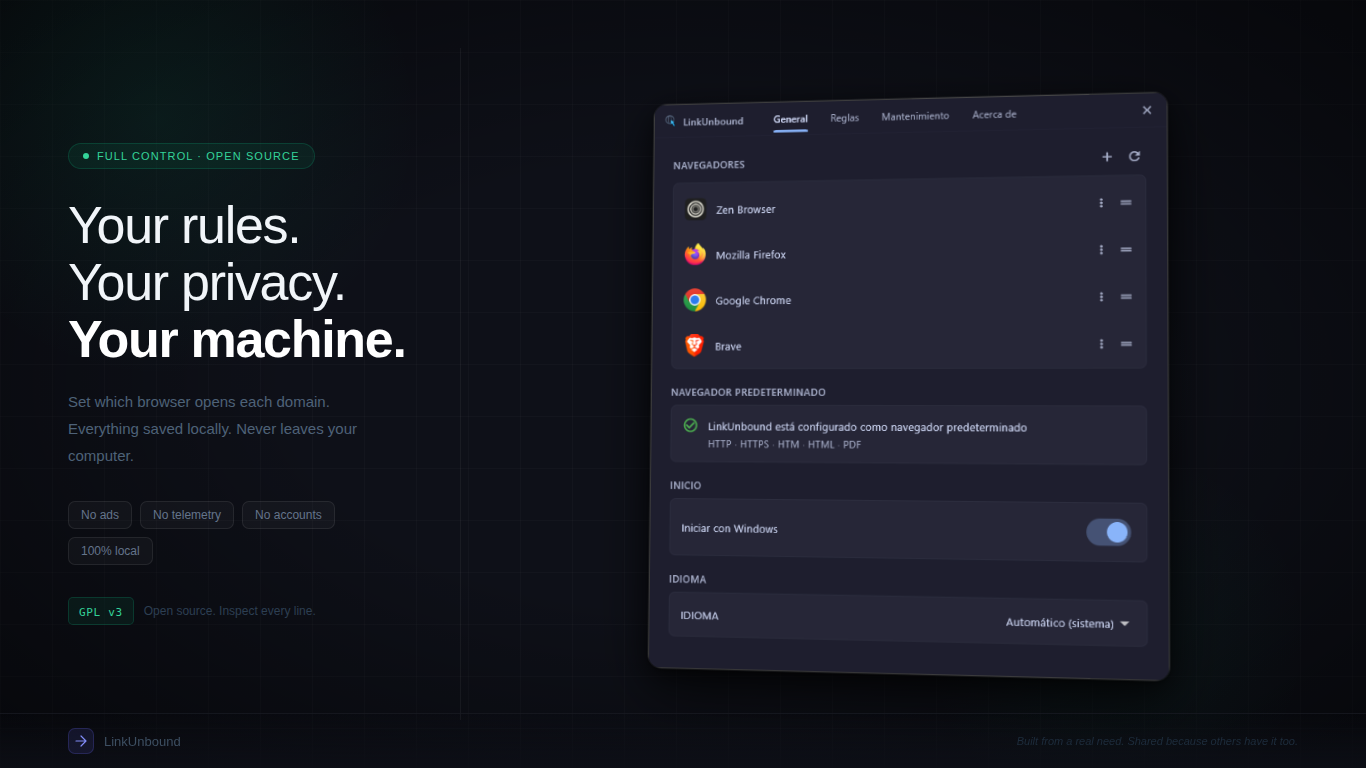
Closing the window doesn’t stop LinkUnbound: the resident keeps receiving links.
Links
Whether the system is sending links to LinkUnbound, and the buttons to make it so.
- Default browser: LinkUnbound receives the links of this computer, or Windows (macOS) is not sending links here yet. On Windows it also counts the associations it holds (7 of 9 associations:
http,https,.html,.pdf…). - Offer itself as a browser (Windows): whether LinkUnbound appears in the Windows list of browsers you can choose from.
- Choose LinkUnbound in Windows › Open Settings (Windows) or Set as the default browser › Set (Mac). See First steps.
- Why Teams and Outlook open Edge: an explanation that appears on Windows, which you can dismiss. See Troubleshooting.
When links aren’t arriving
If something is wrong with the registration, the page opens with LinkUnbound is not receiving links and the reason, with the button that fixes it:
| Reason | What to do |
|---|---|
| The registration points at another copy of LinkUnbound | Repair: it points the system at this copy |
| The registration points at the settings window, which cannot open a link | Repair |
| The program that opens links is missing | The install is incomplete: Download again and reinstall |
| You are running LinkUnbound from the disk image or from a quarantined copy (Mac) | Drag it to Applications and open it from there |
| You are running a freshly built copy (developers) | Register this copy anyway, knowing that links stop opening if the folder is moved or cleaned |
On a Mac, if LinkUnbound 1.x is still installed, this page offers Remove the older version too. See Coming from 1.x.
Rules
Every rule, the browser it opens, and Add a rule. Everything about them is in Rules.
Browsers
Detected browsers and the ones you added; order, hide, duplicate, edit, add, and Look for browsers again. See Browsers and profiles.
Application
| Section | Setting | Options |
|---|---|---|
| Appearance | Theme | Automatic (follows the system), Light, Dark |
| Language | Automatic, English, Spanish | |
| Picker | Classic or Tiles. See The picker | |
| Startup | Launch at system startup | The first link of each session opens instantly. On Windows it can also be turned off in Windows Settings › Apps › Startup; on a Mac, in System Settings › General › Login Items |
| Quick access | Shortcut to open settings | Press the button, then the combination you want. Disabled removes it. If another app already uses it, it says so |
| Updates | Look for new versions in the background | Every six hours, without opening this window. See Updates |
| When a rule decides | Warn when a rule opens without asking | The brief notice with Undo. See Rules |
The automatic language is Spanish if your system is in any Spanish, and English otherwise.
Maintenance
The two actions that destroy something, each with a confirmation:
- Reset the configuration: deletes every rule and every browser, including the ones you added, then looks for browsers again. It can’t be undone.
- Remove LinkUnbound from Windows: it stops offering itself as a browser; you may have to choose another default in Windows Settings. On a Mac it’s Stop being the default browser: links go back to the browser that had them before (Safari if none is remembered), after macOS asks you to confirm.
About
- The version, and the update when there is one: Version 2.x is available, Update, or Check now. See Updates.
- Get release candidates: earlier versions, less tested. You can go back to stable whenever you like.
- If something goes wrong › Save report…: the diagnostic report. See Troubleshooting.
- Third-party notices and Licence texts: the licences of everything LinkUnbound includes, readable without a connection.
- Links to the source code, to report a problem, the privacy policy, and ways to support the project.